First of all what is ISC and what is Kea?
Internet Systems Consortium (aka. ISC), is a non-profit corporation from the US that developes and maintains core software and protocols for the internet and their users. They are the creators of core OSS projects such as Bind9, ISC DHCP or Kea.
What is Kea and why do we need it?
As the Internet evolved and the IPv4 protocol went sort in number of addresses for the whole internet, also did the ISC DHCP that was deprecated by ISC to be substituted by Kea, a more modern implementation of the DHCP service for the requirements that we face in today's networks.
Considerations
We will be installing ISC Kea DHCP service in Ubuntu 22.04 on AWS EC2 instance:
- Instance type and size: t3a.micro
- Cores: 1
- RAM: 1 GB
- Disk size: 8 GB
- OS: Ubuntu 22.04
By the time this was written ISC official repositories didn't have Kea binaries for ARM architectures.
Instalation
Add ISC repository
First wee will be adding the official repositories to install Kea. For that we can use the recommended script made by ISC:
curl -1sLf 'https://dl.cloudsmith.io/public/isc/kea-2-4/setup.deb.sh' | sudo -E bashbashYou can define statically the distro, its' version and the architecture if you want to by using the next variant of the command:
curl -1sLf 'https://dl.cloudsmith.io/public/isc/kea-2-4/setup.deb.sh' | sudo -E distro=some-distro codename=some-codename arch=some-arch bashbashOr you can do it manually:
sudo apt install -y apt-transport-https
keyring_location=/usr/share/keyrings/isc-kea-2-4-archive-keyring.gpg
curl -1sLf 'https://dl.cloudsmith.io/public/isc/kea-2-4/gpg.0D9D9A1439E23DB9.key' |  gpg --dearmor > ${keyring_location}
curl -1sLf 'https://dl.cloudsmith.io/public/isc/kea-2-4/config.deb.txt?distro=ubuntu&codename=jammy' > /etc/apt/sources.list.d/isc-kea-2-4.list
sudo apt updatebash
Remmember that we are doing this on Ubuntu 22.04 (codename jammy), check the documentation for other distros, versions or architectures.
Remove ISC repository *
If you would like to remove the repository, for example if you decide to change the servicec you'll be using:
sudo rm /etc/apt/sources.list.d/isc-kea-2-4.list
sudo apt clean
sudo rm -rf /var/lib/apt/lists/*
sudo apt updatebash
Installation of Kea
The components of Kea are the following ones:
- isc-kea-dhcp4
- isc-kea-dhcp6
- isc-kea-dhcp-ddns
- isc-kea-ctrl-agent
- isc-kea-admin
- isc-kea-hooks
We can install each component individuallym selecting which of them do we want to install or we can just install the whole thing using the following commands:
# install individually
sudo apt install -y <component name>
# install the whole set of Kea software
sudo apt install -y isc-keabash
We are going to install the whole thing for this tutorial.
So, now that we have it installed... How can we chack the services? We can list them by listing the services and this should be the expected output:
# input
sudo service --status-all

# output
...
[ - ]  isc-kea-ctrl-agent
[ - ]  isc-kea-dhcp-ddns-server
[ + ]  isc-kea-dhcp4-server
[ + ]  isc-kea-dhcp6-server
...bash
Configuration
As we can see the isc-kea-ctrl-agent appears not to be working, but the isc-kea-dhcp-X-server, appears to be workin just fine. But, still won't be servicing any IP, because we didn't configure anything yet.
So... we will go to /eetc/kea and list the directory:
cd /etc/kea
ls

# output
kea-ctrl-agent.conf  kea-dhcp-ddns.conf  kea-dhcp4.conf  kea-dhcp6.confbash
So, we will be configuring the DHCPv4 service. For that we will edit the kea-dhcp4.conf file that will look something like this:
# The whole configuration starts here.
{
    # DHCPv4 specific configuration starts here.
    "Dhcp4": {
        "interfaces-config": {
            "interfaces": [ "eth0" ],
            "dhcp-socket-type": "raw"
        },
        "valid-lifetime": 4000,
        "renew-timer": 1000,
        "rebind-timer": 2000,
        "subnet4": [{
           "pools": [ { "pool": "192.0.2.1-192.0.2.200" } ],
           "subnet": "192.0.2.0/24",
           "id": 1
        }],

       # Now loggers are inside the DHCPv4 object.
       "loggers": [{
            "name": "*",
            "severity": "DEBUG"
        }]
    }

# The whole configuration structure ends here.
}bash
As you can see it’s a JSON file. We can do something simple as in the previous file, you can adapt it for your case use… But first we need to identify our network interface, to which we will be binding to it.
So we will list the network info by using ifconfig:
sudo apt install net-tools
ifconfig

# output

ens5: flags=4163<UP,BROADCAST,RUNNING,MULTICAST>  mtu 9001
        inet 192.0.2.3  netmask 255.255.255.0  broadcast 192.0.2.255
        inet6 c370:08c1:eb99:dc48:b9e1:ac0e:42e7:32d1  prefixlen 64  scopeid 0x20<link>
        ether 02:fd:4d:aa:5e:f3  txqueuelen 1000  (Ethernet)
        RX packets 78427  bytes 76988286 (76.9 MB)
        RX errors 0  dropped 0  overruns 0  frame 0
        TX packets 69259  bytes 7158222 (7.1 MB)
        TX errors 0  dropped 0 overruns 0  carrier 0  collisions 0

lo: flags=73<UP,LOOPBACK,RUNNING>  mtu 65536
        inet 127.0.0.1  netmask 255.0.0.0
        inet6 ::1  prefixlen 128  scopeid 0x10<host>
        loop  txqueuelen 1000  (Local Loopback)
        RX packets 448  bytes 47299 (47.2 KB)
        RX errors 0  dropped 0  overruns 0  frame 0
        TX packets 448  bytes 47299 (47.2 KB)
        TX errors 0  dropped 0 overruns 0  carrier 0  collisions 0bash
So we will modify the kea-dhcp4.conf and add it like this:
...
"Dhcp4": {
    "interfaces-config": {
        "interfaces": [ "ens5" ],
        "dhcp-socket-type": "udp"
    },
...bash
The next thing we need for this to be working is to configure a simple pool for our network:
...
"subnet4": [
	{
	    "id": 1, # identifies the network inside Kea, it must be a unique integer identifier
	    "subnet": "192.0.2.0/24", # network ipv4 configuration
	    "pools": [ { "pool": "192.0.2.25 - 192.0.2.200" } ], # from-to IP list to be asigned by the service
	}
]
...bash
To config the DNS and the router on the DHCP we’ll need to add the optional data to the pool:
{
    "id": 1,
    "subnet": "192.0.2.0/24",
    "pools": [ { "pool": "192.0.2.25 - 192.0.2.200" } ],

    "option-data": [
        {
            // For each IPv4 subnet you most likely need to specify at
            // least one router.
            "name": "routers",
            "data": "192.0.2.1",
        },
        {
            "name": "domain-name-servers",
            "data": "192.0.2.251, 192.0.2.252" # Eg. google DNS "8.8.8.8, 8.8.4.4" or corporate DNS
        },
        {
            "name": "domain-name",
            "data": "mycompany.domain"
        }
    ],
}bash
For the management of Kea we have the kea-ctrl-agent. As we saw it before it’s not working. This is because it doesn’t have a password configured and it won’t start-up if there is no password configured. So, we will give it a password by creating /etc/kea/kea-api-password file:
# This creates a 32 long lenght base64 random string and saves it to a new file
# called kea-api-password
sudo bash -c 'echo $(openssl rand -base64 32) > kea-api-password'
sudo chown root:_kea kea-api-password
sudo chmod 0640 kea-api-password
sudo dpkg-reconfigure isc-kea-ctrl-agentbash
Let’s check if it’s working:
sudo service isc-kea-ctrl-agent status
● isc-kea-ctrl-agent.service - Kea Control Agent
     Loaded: loaded (/lib/systemd/system/isc-kea-ctrl-agent.service; enabled; vendor preset: enabled)
     Active: active (running) since Fri 2024-01-19 12:03:58 UTC; 41s ago
       Docs: man:kea-ctrl-agent(8)
   Main PID: 62851 (kea-ctrl-agent)
      Tasks: 5 (limit: 1096)
     Memory: 1.4M
        CPU: 15ms
     CGroup: /system.slice/isc-kea-ctrl-agent.service
             └─62851 /usr/sbin/kea-ctrl-agent -c /etc/kea/kea-ctrl-agent.conf

Jan 19 12:03:58 ip-10-1-100-216 systemd[1]: Started Kea Control Agent.
Jan 19 12:03:58 ip-10-1-100-216 kea-ctrl-agent[62851]: INFO  CTRL_AGENT_HTTP_SERVICE_STARTED HTTP service bound to address 127.0.0.1:8000
Jan 19 12:03:58 ip-10-1-100-216 kea-ctrl-agent[62851]: INFO  DCTL_CONFIG_COMPLETE server has completed configuration: listening on 127.0.0.1, port 8000, control sockets: d2 dhcp4 dhcp6, 0 >
Jan 19 12:03:58 ip-10-1-100-216 kea-ctrl-agent[62851]: INFO  CTRL_AGENT_STARTED Kea Control Agent version 2.4.1 startedbash
As we can see the service is running on port 8000, so if we are thinking of adding more than 1 DHCP server to allow the access to this port from the rest of the servers.
Let’s apply the configuration of the kea-dhcp4.conf file. For that we will use the kea-shell. With this shell we can manage any of the kea servers:
kea-shell --host 127.0.0.1 --port 8000 --auth-user kea-api --auth-password "$(sudo cat /etc/kea/kea-api-password)" --service dhcp4 config-reloadbashAfter that press CTRL + D and the server should respond with this:
[ ... { ... "result": 0, "text": "Configuration successful." } ... ]bashTest the configuration
With nmap we can test the DHCP configuration by launching the following command:
nmap -sU -p 67 --script=dhcp-discover <server-ipv4>bashBeing server-ipv4 the server’s IP.
If you don’t have nmap installed on your PC, you can install it via the installer on their website:
If you have an Ubuntu PC you can just install it via APT Ubuntu repositories:
sudo apt install -y nmapbashLet’s test it:
nmap -sU -p 67 --script=dhcp-discover 192.0.2.3

# Output

Starting Nmap 7.93 ( https://nmap.org ) at 2024-01-19 13:36 Hora estßndar romance
NSOCK ERROR [0.0460s] ssl_init_helper(): OpenSSL legacy provider failed to load.

Nmap scan report for 10.1.100.216
Host is up (0.056s latency).

PORT   STATE SERVICE
67/udp open  dhcps
| dhcp-discover:
|   DHCP Message Type: DHCPACK
|   Router: 192.0.2.1
|   Domain Name Server: 192.0.2.251, 192.0.2.252
|   Domain Name: mycompany.domain
|   Default IP TTL: 240
|   Server Identifier: 192.0.2.3
|_  Bootfile Name: EST5EDT4,M3.2.0/02:00,M11.1.0/02:00

Nmap done: 1 IP address (1 host up) scanned in 17.70 secondsbash
So, with this the server would be working, now we have to tune it so we can give the configuration we want for our network or networks.
In case that the server won’t be deployed in the same network as the clients we will have to configure a dhcp-relay to the server and if we have firewalls in-between our PC-s and server we have to allow the comunication via port UDP 67.
For example to configure dhcp-relay you can use the following links depending on your provider:
Official documentation
- https://kea.readthedocs.io/en/latest/arm/intro.html
- https://kb.isc.org/docs/isc-kea-packages#open-source-packages
AI-generated image disclosure
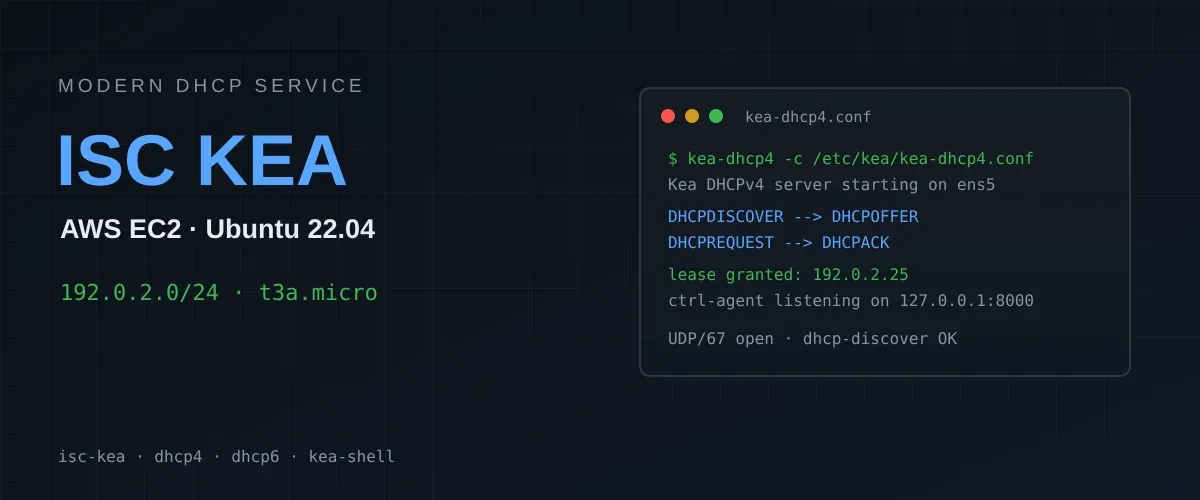
The cover image (/images/posts/isc-kea-dhcp-header.webp) was generated with the assistance of an AI model (deepseek-v4-flash). In accordance with Regulation (EU) 2024/1689 (EU Artificial Intelligence Act, Article 50), this content is disclosed as AI-generated. It is an original illustration created for this article without third-party images, logos or external assets; product names (ISC Kea, AWS) appear descriptively and no affiliation or endorsement is implied.